
If you’re looking to optimize internet for gaming, you’re probably tired of lag spikes, high ping, and sudden disconnects ruining critical moments. Whether you’re grinding ranked matches, competing in esports tournaments, or hosting your own online games, a stable and fast connection isn’t optional—it’s essential.
This article is built to help you understand exactly how to optimize internet for gaming with practical, proven strategies. We break down what actually impacts in-game performance, from router placement and bandwidth management to advanced network settings that serious players use. You’ll learn what matters, what doesn’t, and how to make changes that deliver measurable improvements.
To ensure accuracy, we’ve analyzed competitive gaming setups, reviewed network performance data, and referenced best practices used by tournament organizers and high-level players. The goal is simple: give you clear, actionable steps that improve your connection and elevate your overall gaming experience—without unnecessary technical confusion.
From Lag Spikes to Killstreaks: Your Ultimate Guide to a Stable Gaming Connection
First, let’s define the enemy. Latency is the delay between your action and the server’s response, measured in milliseconds (ms). Packet loss happens when data never reaches its destination (think lost mail, but angrier). Both ruin matches fast.
Start simple. Plug directly into your router with an Ethernet cable. Wi-Fi adds interference and jitter (small, inconsistent delays). Next, reboot your modem and router; this clears cached errors and refreshes your IP lease.
Then, log into your router settings. Enable Quality of Service (QoS) to prioritize gaming traffic. After that, update firmware and network drivers.
If issues persist, run a ping test and contact your ISP with results. Finally, upgrade outdated hardware to fully optimize internet for gaming and sustain stable, low-latency sessions.
The Foundation: Optimizing Your Physical Hardware Setup
Why a Wired Connection Is Non-Negotiable
If you care about ping, Ethernet isn’t optional—it’s essential. Latency (the delay between your action and the server response) is consistently lower on wired connections than Wi‑Fi. According to the FCC, wired connections reduce interference and packet loss compared to wireless signals (FCC Broadband Overview).
Cat 5e supports up to 1 Gbps. Cat 6 handles 10 Gbps at shorter distances with better shielding. Cat 7 adds even stronger shielding and higher frequency support—but for most gamers, Cat 6 is the sweet spot (no need to overbuild like you’re running NASA).
Recommendation: Use Cat 6 Ethernet directly from router to PC or console to optimize internet for gaming.
Is Your Router a Bottleneck?
Not all routers are built for gaming. Look for:
- MU-MIMO (serves multiple devices simultaneously)
- Beamforming (focuses signal toward devices)
- A dual- or quad-core processor (yes, routers have CPUs)
- Quality of Service (QoS) controls
Skip flashy “gaming” branding if it lacks these features. Marketing RGB won’t lower your ping (sad but true).
Modem Matters More Than You Think
A modem connects your home to your ISP. A router distributes that connection internally. ISP-provided combo units often underperform due to limited processing power. A personal DOCSIS 3.1 modem supports higher speeds and lower latency (approved by most major ISPs).
Recommendation: Buy your own modem and pair it with a strong standalone router.
Placement Is Paramount
If Wi‑Fi is unavoidable, place the router centrally, elevated, and away from metal, walls, or microwaves. Avoid corners. Think “center stage,” not “storage closet.”
Pro tip: Reboot networking gear monthly to clear memory leaks and maintain performance.
Fine-Tuning Your Network Settings for Peak Performance
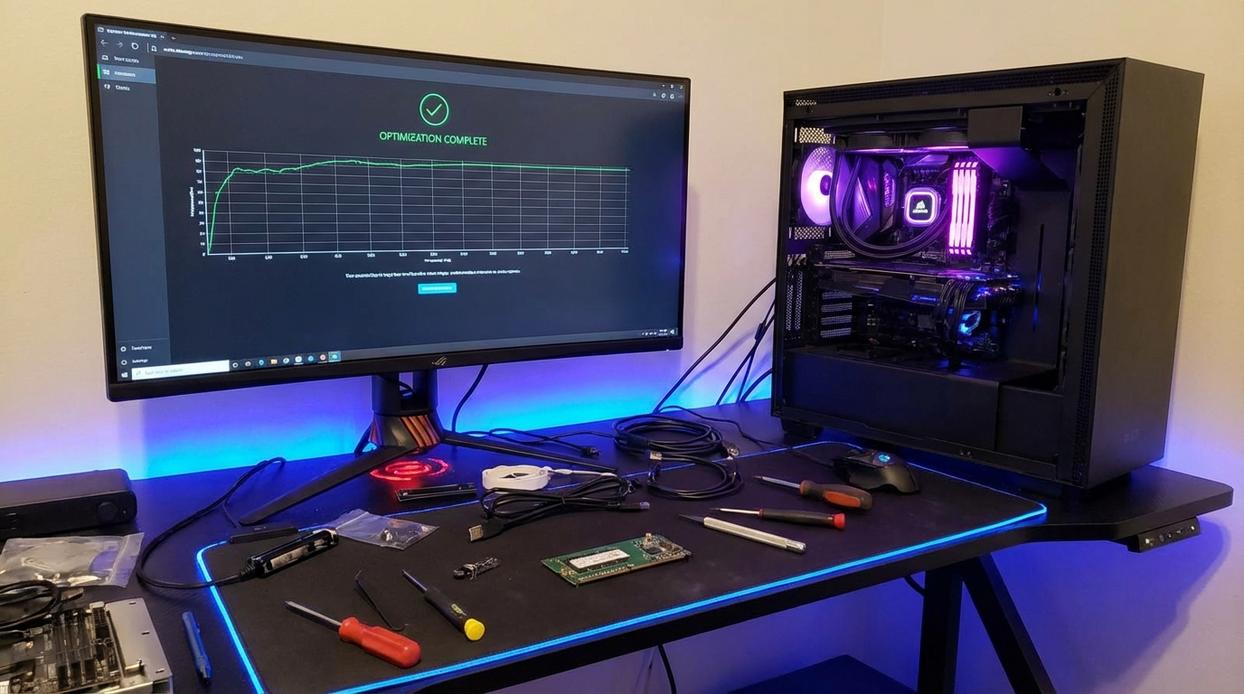
Serious players know raw speed isn’t everything—stability wins matches. So let’s go beyond the basics and optimize internet for gaming with precision tweaks most guides skip.
Unlocking Quality of Service (QoS)
Quality of Service (QoS) is a router feature that prioritizes specific devices or traffic types. In plain terms, it tells your network, “This device matters most.”
First, log into your router’s admin panel (usually 192.168.1.1 or 192.168.0.1 in your browser). Enter your admin credentials, then locate QoS Settings (often under Advanced or Traffic Management). Enable QoS and assign high priority to your gaming PC, Xbox, or PlayStation by selecting the device’s MAC address.
Some argue modern routers “auto-manage” traffic well enough. That’s partially true—until someone starts streaming 4K Netflix mid-match (we’ve all been there). Manual prioritization removes that gamble.
The DNS Switch for Faster Response
DNS (Domain Name System) translates website names into IP addresses. A slow DNS can delay server connections. Switching to public DNS like Google (8.8.8.8) or Cloudflare (1.1.1.1) often improves response times (Cloudflare claims faster average lookup speeds globally, 2023 data).
On PC: Network Settings → Adapter Options → IPv4 → Manually enter preferred DNS.
On Xbox/PlayStation: Network → Advanced Settings → DNS → Manual.
Is it a miracle fix? No. But shaving milliseconds matters in competitive play.
Eliminate Bandwidth Hogs
Next, check Task Manager (PC) or network settings for background uploads—cloud sync, updates, streaming devices. Disable or schedule them. Pro tip: set Windows Updates to active hours outside gaming sessions.
Wi-Fi Channel Optimization
If Ethernet isn’t possible, use a Wi-Fi analyzer app to scan nearby channel congestion. Then manually set the least crowded 2.4GHz or 5GHz channel in your router settings. Think of it like switching lanes in traffic—fewer cars, smoother ride.
Working With (or Around) Your Internet Service Provider
I remember prepping for a ranked match, confident in my “gigabit” plan—then watching my character teleport across the map. That’s when I learned speed isn’t everything.
Are You Getting the Speeds You Pay For?
Run a wired speed test (Wi‑Fi adds variables). Focus on ping (how fast data travels, measured in milliseconds) and jitter (how much that latency fluctuates). High download speeds with 60ms+ ping still feel laggy. Pro tip: test at peak hours to spot congestion.
How to Talk to Your ISP
When calling support, say: “Can you check for line noise, signal strength levels, and area outages?” Line noise means interference on the cable; weak signal strength causes packet loss. Sound informed, get escalated faster (sad but true).
Understanding Your Data Plan
Bandwidth is capacity; latency is responsiveness. A gigabit plan won’t fix high ping. For gaming, prioritize stable low latency over raw speed.
The “Bufferbloat” Problem
Bufferbloat happens when your router over-queues data, causing lag spikes. Routers with SQM (Smart Queue Management) fix this by controlling traffic flow.
If you’re debating setups, see pc vs console hosting which is better for private matches.
To truly optimize internet for gaming, tweak QoS before upgrading plans.
Advanced Tactics for a Competitive Edge
Port Forwarding Explained
Port forwarding is the process of manually directing incoming internet traffic to a specific device on your network. In gaming terms, it helps achieve an Open NAT Type (Network Address Translation), which improves matchmaking speed and party chat stability. Some argue it’s unnecessary on modern routers. However, competitive players often notice fewer connection errors after setting it up. You can find required ports for popular titles through official support pages like https://portforward.com/games/.
Gaming VPNs: Myth vs. Reality
Contrary to popular belief, a VPN won’t magically lower ping. In fact, it can increase latency. That said, gaming-focused services like ExitLag or WTFast may help when your ISP routes traffic inefficiently, creating a more direct path to servers.
Updating Network Drivers
Finally, update your NIC drivers. It’s overlooked, yet critical when trying to optimize internet for gaming.
Lag isn’t random; it’s a bottleneck waiting to be found. First, plug into Ethernet—Wi‑Fi convenience costs milliseconds (and matches). Next, update drivers, trim background apps, and prioritize traffic in your router’s QoS settings. Most guides stop there. However, few explain bufferbloat testing and DNS optimization, two overlooked tweaks that stabilize ping during peak hours. Use a wired test, measure latency under load, and then optimize internet for gaming with targeted router firmware adjustments. Win consistently.
Level Up Your Connection and Dominate Every Match
You came here because lag, high ping, and unstable connections are holding you back. Now you understand what’s really causing those frustrating spikes and how the right setup can transform your gameplay from reactive to unstoppable.
When you optimize internet for gaming, you’re not just tweaking settings — you’re eliminating the delays that cost you ranked matches, clutch moments, and tournament confidence. Every millisecond matters, and now you know exactly how to take control of your network instead of letting it control you.
The next move is simple: apply these strategies today, test your speeds, adjust your router settings, prioritize wired connections, and fine-tune your network for peak performance. Don’t wait until the next match ruins your streak.
Serious players don’t leave performance to chance. If you’re ready to eliminate lag, reduce ping, and gain a real competitive edge, start upgrading your setup now and put these optimization steps into action. Your opponents won’t wait — and neither should you.